Before you begin
- Medicine names describe game items, not real treatment advice.
- Compare a single item with the baseline monitor and Chart state.
- Case mode may apply different constraints from Sandbox.
What changed in the free v1.23 release
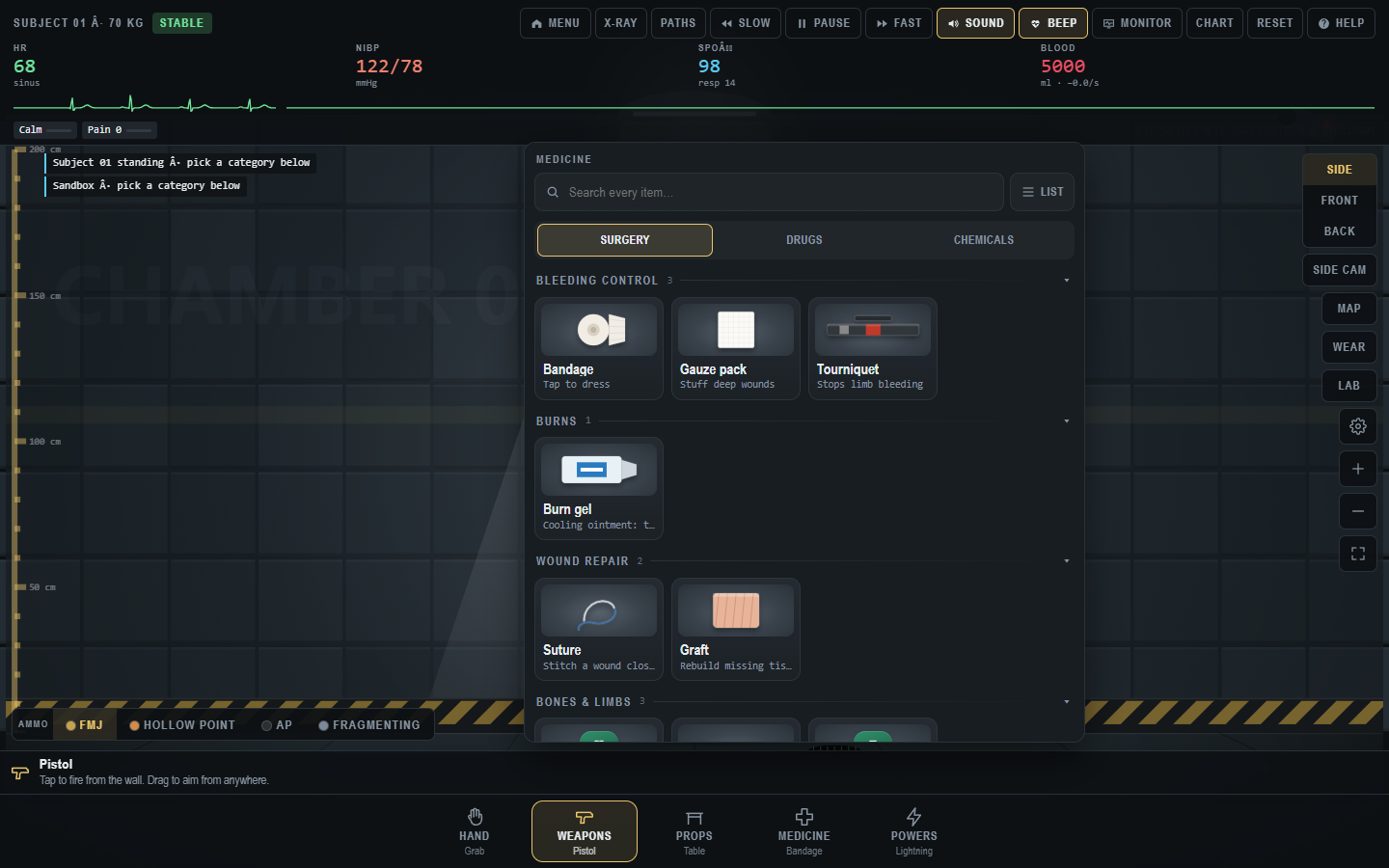
The Medicine screenshots below were captured on 31 October 2026, before the creator made v1.23 free. The developer's v1.23 patch notes announce additional airway, monitoring, diagnostic, hygiene, and forensic systems. The later v1.24 release post records when v1.23 became free. The old picker image is therefore a navigation example, not a complete inventory of later releases.
Look for the current game's categories, item descriptions, and prompts. The developer names a BP cuff, bronchoscope, Doppler probe, and autopsy mode among the v1.23 additions, but we have not re-captured their current placement in the free browser build. Do not use an old screenshot to conclude that an item is absent. These are fictional game systems; the developer's descriptions should not be used as medical instructions.
Treat the inventory as a game system
Trauma Lab has a Medicine category and a surgery-mode choice, but its own launch notice calls it a fictional simulation rather than medical advice. That distinction matters most on this page. We can explain where a menu item appears, what the interface asks, and how to read game feedback. We cannot turn a game's simplified interactions into a real treatment sequence. Our earlier browser build was checked on 31 October 2026, and the official itch.io page marks the project as in development. Labels, availability, and behavior can change.
The Medicine picker screenshot in our guide library shows tabs for Surgery, Drugs, and Chemicals, with Surgery groups including Bleeding Control, Burns, Wound Repair, and Bones & Limbs. Visible item cards include Bandage, Gauze pack, Tourniquet, Burn gel, Suture, and Graft. These are names on a game screen, not recommendations. Begin by learning the picker layout. A player who cannot tell whether the panel is open or an item is selected will struggle to interpret any later result, especially in a timed or constrained case.
Find an item without using it
Enter Sandbox, open Medicine, and read the panel from top to bottom. Note the search field, tabs, group headings, and item cards. Click a tab and return to Surgery without selecting a card. Use the search field to find a visible name, then clear the query. This quick exercise teaches you how the menu filters content and prevents an old search term from making another tab look empty. Close the picker and confirm that the chamber is interactive again. The dark backdrop is a sign that the menu layer may still be active.
Now choose one card, but pause before acting on the subject. Read the selected tool name and instruction strip near the bottom of the game. Some items may be used by clicking, others by dragging, and some may require a target the game recognizes. The current prompt is more reliable than an external guide written for an older build. If an action fails, check Pause, the selected item, the target, and whether an overlay remains open. Do not click repeatedly on a real-looking body part merely because the card name suggests a real procedure. This is a game interaction to be understood from its UI.
For a clean comparison, record the baseline monitor and Chart state before selecting an item. After the game action, reopen Chart and note exactly which fields changed. A visible animation, an updated wound label, and a monitor shift are different pieces of evidence. If they disagree, describe the disagreement instead of choosing the most dramatic one. Reset and repeat if you want to know whether the outcome is consistent in the current build.
Simple and Complex surgery modes
The menu offers Simple and Complex surgery settings. Simple is described with a short “tap and it happens” hint, while Complex exposes more individual interactions. The game includes visible surgery-tool labels such as Scalpel, Sternal saw, Retractor, Suction, Clamp, Scissors, Needle, Forceps, and Anaesthesia. The presence of these names does not establish a medically realistic workflow. The interaction can be simplified, stylized, or intentionally game-like, and the developer may revise it.
The most useful comparison is a same-situation test. Choose a mode and a clean scenario, note the surgery setting, and follow only the on-screen prompts until the game acknowledges an action. Reset, change to the other surgery setting, and repeat. Write down how many prompts or distinct tool selections the interface required, what feedback it displayed, and whether the outcome panel changed. That tells you how the two settings differ in your build. It avoids a false claim that one setting is “correct” or maps to a real procedure.
Complex mode can be confusing because more tools and steps create more opportunities to lose track of the active item. After every selection, read the instruction strip again. If the game does not acknowledge a step, check whether you are in the right mode and whether an earlier panel is still open. The point of this guide is to reduce interface confusion, not to provide an operation tutorial. If the game asks for a sequence that resembles a real procedure, follow the game text only in the fictional context and never use it as external guidance.
Keep Him Alive changes the question
The menu captured on 31 October labeled Keep Him Alive as ten emergencies with Medicine only. In this mode the available tools are constrained and the game presents a case or objective. The first task is to read that prompt. Note the starting monitor and Chart, then identify which parts of the Medicine menu the game makes available. Do not assume that every Sandbox item belongs in the case. A missing weapon or prop is consistent with a medicine-only mode, not evidence that the build is broken.
The safest strategy for learning a case is to treat it like a puzzle designed by the game. Record what the prompt says, what the on-screen labels show, and what feedback follows one action. If the case status changes, note the exact text. If the monitor changes without the case advancing, that is a different observation. Reset and try another in-game option only after you understand what the first attempt did. Real-world triage expectations can mislead here because the game may use its own simplified state machine.
If you share a case tip, label the build and avoid calling it medical advice. A player on a newer version may see different item placement or feedback. A supporter build and free build may also differ. The creator's devlogs have changed mechanics and performance quickly, so a fixed solution should be verified in the exact version before publication. This library intentionally teaches how to read the mode instead of inventing solutions to all ten cases.
Reading the Bleeding Control group
In the observed Medicine screenshot, Bleeding Control is a menu group with Bandage, Gauze pack, and Tourniquet cards. Their on-card descriptions are short and may be truncated on a narrow screen. Select one and read the full game prompt if available. Do not infer that the card will act on every wound or that its game effect matches real physiology. A useful game experiment is to compare what the Chart's bleeding section displays before and after a single item, while keeping the scenario and target consistent.
The developer's v1.21.2 performance post explains that wound graphics can be expensive and that drawing was optimized. That means a visual change and an underlying state update may not always feel simultaneous on a slow device. If the display appears stuck, check the game's status and Chart after a moment, then reset and try again with fewer effects and lower graphics settings. Do not mistake a frame-rate problem for proof that a medicine item has no effect.
In a case mode, the game may evaluate a particular sequence or target. If one item does not produce the expected prompt, inspect the current case text and selected tool. Do not keep applying items blindly. The fictional interface may be teaching a rule that is specific to that scenario. Describe the rule only after it is visible and reproducible in the game. We deliberately avoid publishing a real-world “bleeding-control protocol” under the guise of game help.
Burns, wound repair, bones, and limbs
The observed picker also has groups for Burns, Wound Repair, and Bones & Limbs. Burn gel appears under Burns; Suture and Graft are visible under Wound Repair. The v1.20 devlog says the creator added a splint mechanic and prosthesis choices for severed limbs. Those notes establish that the game has features with those names, but their exact current interactions should be read from the running build. Do not assume that a label in a screenshot reveals every prerequisite.
To learn one group, create a controlled in-game state that the game itself labels appropriately, then inspect the menu. The Chart's skeletal section or a wound entry can help verify the state. Choose a single item and watch for feedback. Reset before trying another. If you cannot locate an item, check the build, mode, tab, and search filter. A guide that says “always click this” without those conditions will become inaccurate as the game develops.
Prosthesis choices are especially version-sensitive. The v1.20 post names wood, steel, and carbon types and says a player can click a severed limb to choose one. In a later build, the interface could look different. Use this as a clue for where to investigate, not as a permanent interaction guarantee. In this guide, the only safe claim is that the creator documented the feature for that release. The game's current prompt should resolve the exact control.
Drugs and Chemicals tabs
The observed picker includes Drugs and Chemicals tabs, but a screenshot of their tab labels does not establish the complete inventory or effects. Before selecting an item, read its in-game description. If the selected item influences the Chart's “drugs on board” section, compare before and after. Avoid treating a game label as a dosage recommendation or a model of how a real drug works. The simulation may use simplified categories and instant feedback for playability.
The same caution applies to chemicals. A name can evoke real-world behavior while the game implements a stylized effect. Separate the menu fact (“this card is listed here”) from the observed game fact (“this field changed after I used it”) and from any inference about a hidden calculation. Only the first two are appropriate for a player guide without access to the game's design specification. A careful record will be more useful when a future update modifies the item.
If a case seems to call for a drug, read the case prompt and game Help. Do not search a real medical source to decide what the game expects. Real medical sources are for real health questions and are outside the scope of this entertainment guide. If you are concerned about an actual person, stop using the game as reference and seek appropriate professional help.
A repeatable test of a medicine item
Choose a specific in-game question: “Does this item change a particular Chart field in this build?” Enter Sandbox, set Simple surgery mode, reset, note the baseline, and create one game state. Open Medicine and choose the item. Read the prompt, apply it once as instructed, then inspect the monitor, Chart, and visual state. Record the result. Reset and repeat. If you want to compare Complex mode, repeat the whole setup after switching the mode. If you want to compare two items, keep the surgery mode fixed and change only the item.
This test does not prove medical effectiveness. It reveals how the software represented an action under a controlled setup. If the subject moves because of active ragdoll behavior, the target may shift between trials. If the device lags, the visual feedback may be delayed. If the game is paused, an animation may wait. Record those conditions. A useful conclusion might be “In two trials, the Chart's bleeding field changed after the game accepted the item.” A claim that the same item always works on all injuries would exceed the evidence.
When testing, use screenshots that include the selected item and relevant feedback. A cropped wound image alone cannot show whether the game recognized the action or which mode was active. The anatomy guide explains how to interpret the monitor and Chart without inventing hidden mechanics.
Performance and display limits
Medicine interfaces can be dense on a phone. The item grid may scroll, tabs may be narrow, and text can truncate. Try landscape orientation or a larger viewport if you cannot read a card. The game's list view may be easier to scan than thumbnails. Check that a search query is cleared before concluding that a group is empty. If the browser itself becomes slow, use Options → Graphics → Performance and try Balanced, as suggested by the creator's v1.21 update. Lowering detail may make the UI more responsive without changing the case objective.
Do not confuse load delay with a missing game mechanic. A large HTML5 build can take time to initialize, and a complex effect can make later frames slow on limited hardware. Wait for the scene to settle, then inspect the game state. If it still fails, record the device, browser, build, mode, and exact action. The performance guide covers those checks in detail and points to the developer's troubleshooting requests.
Sources and next steps
The visible Medicine tabs, group names, and cards were observed in the browser game on 31 October 2026. The official listing establishes development status and platform availability. The v1.20 update documents splints and prostheses; the v1.21 update documents related scene and performance changes. None of those sources makes the game a medical reference.
For menu navigation, see Tool Categories. For understanding the HUD, see Anatomy and Monitor. For the difference between Sandbox and case mode, read Modes. If you are just beginning, Start Here provides a safer route through the basic interface before you explore the larger Medicine inventory.
Trauma Lab is in development. Check the official game page and developer updates for current availability and changes. This independent guide discusses a fictional game, not medical practice.