Before you begin
- Use Props and scene controls to test one change at a time.
- Active ragdoll movement can shift the target between attempts.
- Record view, settings, and object placement for repeatable comparisons.
Give the sandbox a visible reference point
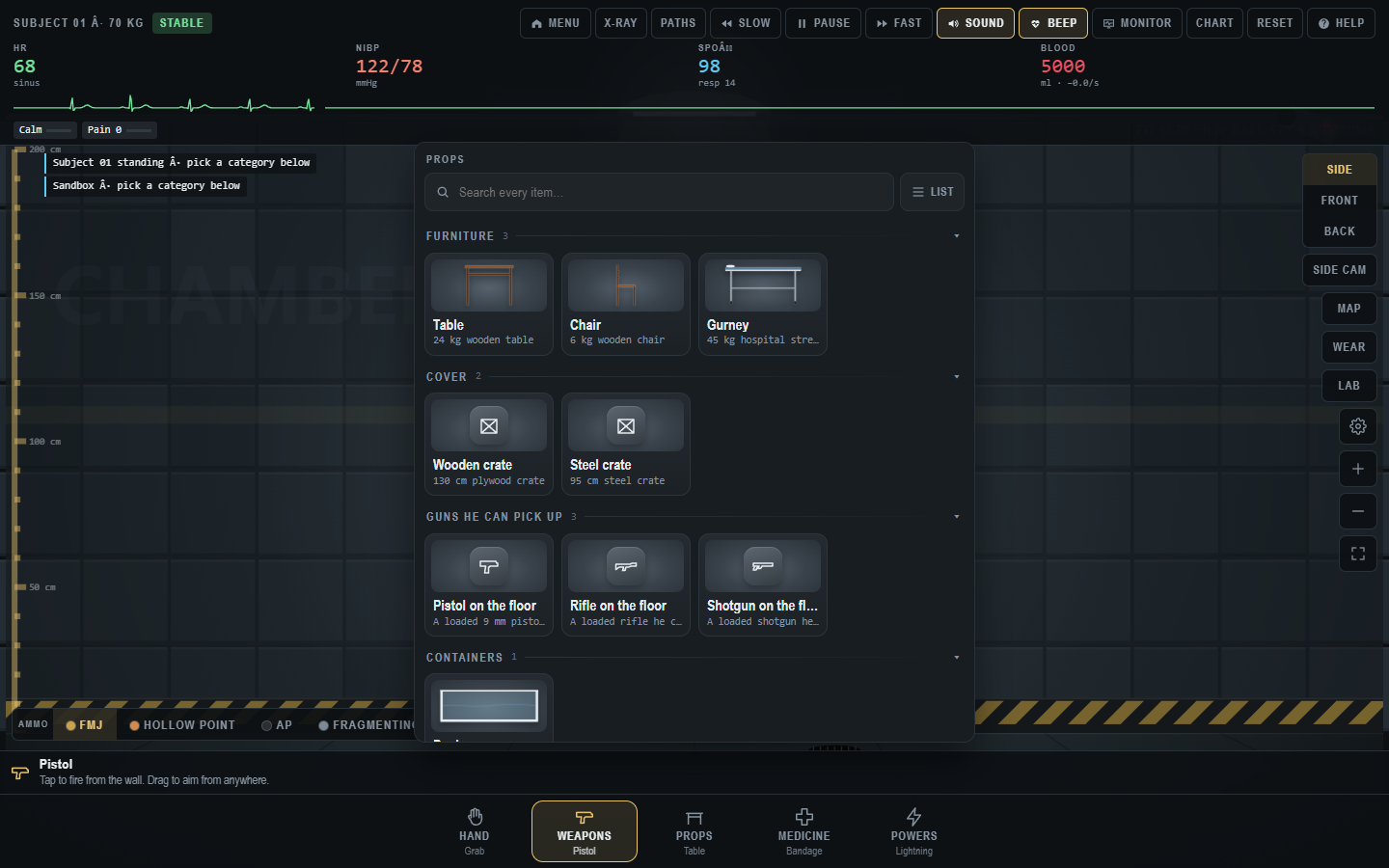
The “physics” in Trauma Lab is easiest to understand when you can see what moves and what stays put. A clean scene with one subject and one prop is more informative than a chamber crowded with furniture, ropes, clones, and effects. The observed browser build includes a Props picker, a Hand or Grab action, a right-side Lab menu, and view controls. The developer's v1.20 and v1.21 notes discuss revised melee handling, rope behavior, body collision, outfits, and active ragdoll. This guide turns those named features into testable in-game questions without pretending that the simulation is a physics laboratory.
The original screenshot of the Props picker in our guide library shows Furniture, Cover, Guns He Can Pick Up, and Containers groups. It also shows how easy it is for a menu to cover the chamber. Before comparing two objects, learn to open, search, select, and close the picker. A selected thumbnail is not yet a placed object. The bottom instruction strip and the visible scene confirm when the action has happened.
Build a one-object scene
Choose Sandbox, reset, and keep the view at Side. Open Props and choose one familiar object such as a table, chair, or crate. Read the item's in-game prompt, then place it in an empty area with enough room to see it clearly. Do not add a second object yet. Observe whether it drops, rests, rotates, or remains where it was placed. Switch to Front and Back to understand its position relative to the subject. Return to Side before trying another action. If it appears to vanish, check camera framing and the fit control before resetting.
Now use Hand or Grab to move the object a short distance, if the current build allows it. Watch both the object and the subject. If they touch, note whether either responds. Reset and repeat from a similar position. A single bounce or odd collision could be a transient physics event, a hitbox issue, or an intentional rule. Repetition and a consistent setup help distinguish those possibilities. The game is in development, and its creator has already revised how certain objects and bodies interact.
Try the same setup with another object only after you have a baseline. The Props picker may display descriptive weights or material names. Those values are game parameters, not measurements you should project onto real objects. A comparison such as “the steel crate moved less in this trial” needs the same placement, view, action, and setting to be meaningful. If the second object is larger, the collision geometry may differ, so state that limitation rather than declaring a universal material rule.
Understand active ragdoll as variation
The creator's v1.21 free update describes an active ragdoll that can cover wounds, stagger, fight for balance, put out hands during a fall, and get up in different ways. These descriptions explicitly warn against expecting one identical animation each time. A player may see a stumble in one run and a fall in another even when the broad action feels similar. This is a game system to observe, not a way to predict a real human response.
To learn the system, change as few variables as possible. Use the same mode, view, selected item, target area, and timing. Reset between attempts. Record whether the subject stayed upright, stumbled, fell, or recovered. If the positions differ, note that too. You are looking for a range of behavior, not a single scripted result. A screenshot can document one outcome, but a short sequence or multiple notes communicates variation better.
The developer also mentions reflexes, seizures, spasms, and posturing in the v1.21 notes. These are graphic and medically named features in a fictional simulation. A guide should not interpret them as clinical signs. It can say that the creator announced such reactions and show where to observe the game status. If a particular animation does not appear in your build, check version and conditions before claiming the notes are wrong.
Props and collisions
The v1.21 post says clones collide with the subject and thrown objects can hit them. The v1.20 post, by contrast, described an option to spawn another character while noting that characters did not yet interact with one another in that release. This is an instructive example of an evolving feature. If you are testing collision now, verify which build you launched and which menu creates additional bodies. Do not copy a rule from an earlier version without checking it in the current one.
A controlled collision test can be simple. Spawn one additional body if your build exposes the option, place one light-looking prop, then move or throw it in a repeatable direction. Observe the object, the new body, and the original subject separately. Reset and try again. If the object passes through one target but not another, note the exact objects and positions. A screenshot of overlap alone cannot tell you whether a collision was registered; look for motion, status changes, or a log. Avoid adding several bodies at once because they can obscure the cause of movement.
The Props picker also includes “Guns He Can Pick Up” in the observed build. That title suggests an interaction beyond passive placement, but the exact current behavior should be read from the tool prompt and tested in a clean scene. Do not assume every item in the group works identically. If you are comparing one placed object with another, record whether the subject interacted with it. The same scene can produce different movement depending on contact and timing.
Ropes and constraints
Ropes have been specifically discussed in the developer's updates. The v1.20 post mentions a fix for stretching when pulled from multiple angles. The v1.21 notes say ropes wrap around limbs, the head, neck, or body, with further simulated effects. These are adult game features, and some outcomes are graphic. This guide focuses on how to test the attachment and motion system, not on reproducing harmful real-world acts.
Begin by finding the rope item and reading its current prompt. Attach or place one rope in a simple scene, then inspect from more than one view. Note which object or body part the game says it connected to, if it provides a label. Apply a small movement and observe whether the rope follows, tightens, or detaches. Reset before adding a second rope. A dense multi-rope scene can produce complex geometry and make it hard to identify which interaction caused a change. If the visuals stretch strangely, capture the build and a short reproduction sequence for a bug report.
Do not infer a real-world force or injury from the animation. The game may use stylized constraints, collision approximations, or scripted status changes. A useful finding is “this attachment point behaved differently from that one in the same build.” An unsupported finding would be a numerical claim about physical tension or anatomy derived from the screen. Keep the observation within the game's own interface and labels.
Wear and protective outfits
The right-side Wear menu was reworked in v1.20, according to the creator. The v1.21 notes list lab security, police, SWAT, and construction outfits, along with individual clothing pieces. A playtest post says a ballistic helmet and face shield are part of SWAT gear and describes particular in-game protection. These are versioned game claims. The current menu may reorganize items or change their effects, so verify availability in your build before writing a fixed comparison.
Outfits are a useful way to test a visible variable because you can often see the changed appearance immediately. Start with the default subject, choose one outfit, and capture a screenshot that includes the Wear panel or the active selection. Reset and compare with a second outfit under the same view. If you are examining an in-game protection mechanic, look at the game status and Chart rather than judging only from whether a visual effect looks blocked. Do not turn a game outcome into advice about real protective equipment.
The v1.21 playtest notes also say the game limits how many hats, shirts, trousers, and gloves can be worn at once. Treat that as a clue about the interface rather than assuming your current build enforces the same combination rule. If an item appears to replace another, check the Wear panel for active choices. A missing visual may be a layering or viewport issue. Test one clothing category at a time and record the result.
Maps, Lab, and scene context
Map and Lab controls can change the context around a physics experiment. The v1.20 post says the Map menu was reworked and the Lab menu added. Before comparing two props or rope setups, keep the map and scene settings fixed. A different floor, wall, or room layout can alter where an object lands or how it appears. If you switch maps midway through a test, note that as a new condition rather than combining the results in one comparison.
When exploring a new map, begin with camera navigation. Find the floor and subject, switch Side and Front, and use the fit control. Then place a single object to learn the room's scale. A crowded environment can make the subject look smaller or obscure the monitor. This is a display problem as much as a simulation question. If the game offers cleanup controls in Lab, inspect their labels before using them so you do not erase a scene you meant to document.
An environment may have its own graphics cost. If a scene feels slower than the default chamber, compare with the same tool and graphics settings, then try a performance preset. The developer's performance update discusses rendering improvements but acknowledges that cheaper phones can still dip on heavy effects. Keep performance in mind when judging motion. Choppy frames can make an object appear to jump or miss an interaction.
A physics notebook that stays honest
For each test, record build, mode, map, view, prop, initial placement, action, and observed movement. Add whether X-ray, Pause, or speed controls were active. A note like “chair placed left of the subject, side view, one drag with Hand, chair rotated on contact” is useful because another player can attempt to reproduce it. “Chairs always spin” is too broad. If the game changes, the detailed note remains a historical observation even when the generalization becomes false.
Use screenshots as paired evidence. Capture the clean scene and the result from the same view and zoom. If the motion is the point, a short video is better than a still image. If you share a graphic clip, label it appropriately for adult content. A bug report should include the smallest sequence that demonstrates the issue, not a long montage of unrelated actions. The developer's public posts show that player reports have informed performance and mechanic fixes.
When results conflict, test possible variables rather than choosing the most exciting one. Did the object start at a different height? Was the subject already moving? Did a mod change the prop? Was the game in Slow or Fast mode? Did the map change? Each question narrows the explanation. This method makes the sandbox more engaging because you learn how its systems interact instead of merely accumulating visual chaos.
Sources and related guides
The Props menu groups and right-side controls were observed directly in the browser game on 31 October 2026. The official listing describes the project as a simulation in development. The v1.20, v1.21 playtest, and v1.21 free posts provide the versioned claims about props, ropes, outfits, body collisions, and active ragdoll.
If you need to find an item first, read Tool Categories. If camera angles or overlays are the obstacle, use Controls. If you want ready-made controlled comparisons, continue to the Experiment Workbook. All three are about observing software behavior within a fictional game, not measuring real physics or anatomy.
Trauma Lab is in development. Check the official game page and developer updates for current availability and changes. This independent guide discusses a fictional game, not medical practice.