Before you begin
- Use the visible toolbar and prompts as the source of truth for controls.
- Switch views and layers before interpreting an image or Chart reading.
- If a click does nothing, check for an open picker, Pause, or the selected tool.
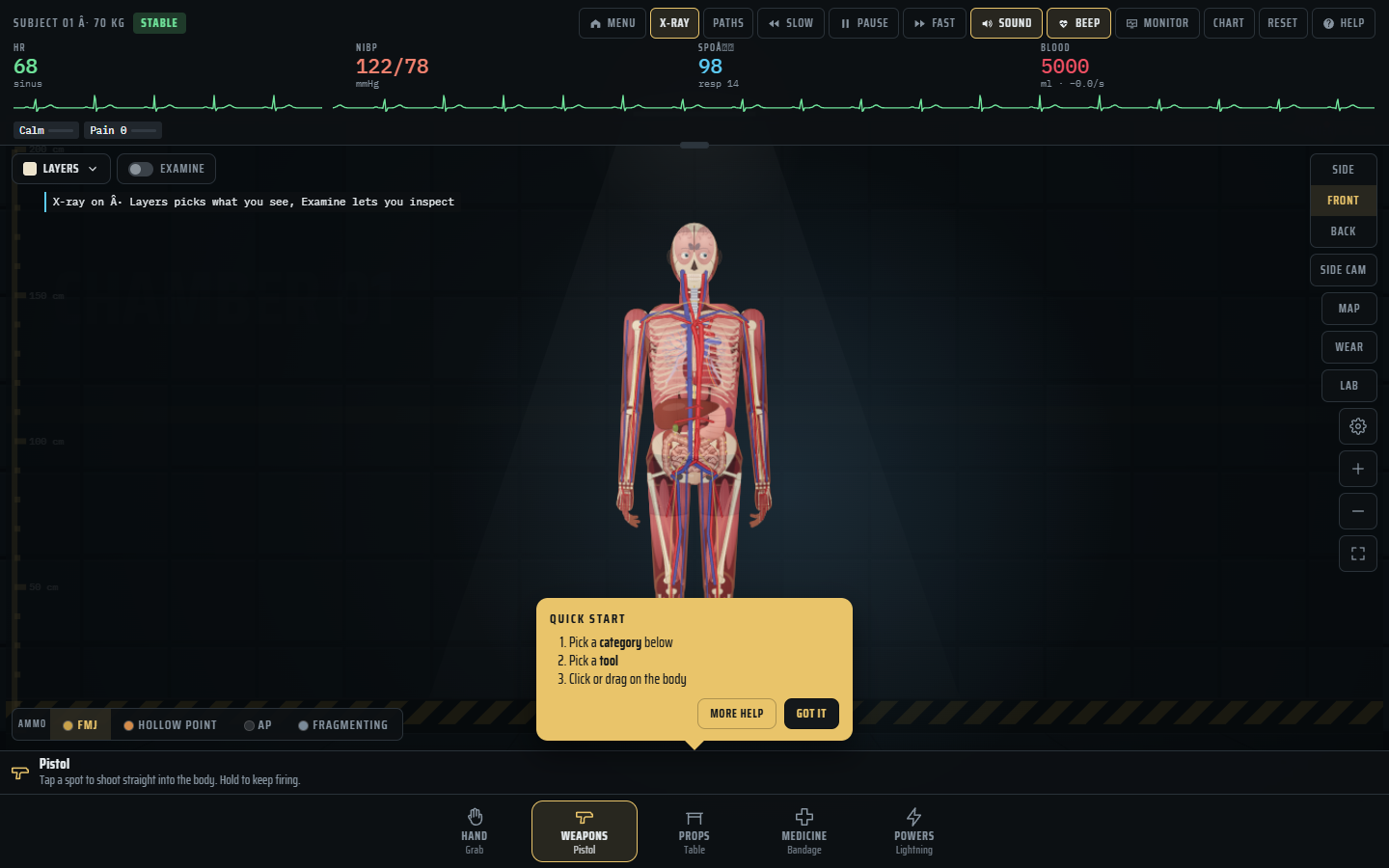
Orient yourself before selecting a tool
The screenshots in this guide show a browser build captured on 31 October 2026. The official game listing showed v1.25 free and supporter downloads on 13 November; we have not verified the version of this site's embedded game. Treat the images as a map of the older interface. The Help panel and prompts in the build you open determine the current controls.
In the captured Sandbox screen, the subject occupies the center, the monitor sits above it, global controls run across the top, views and scene controls sit at the right, and tool categories line the bottom. Before acting, find Menu, Help, Reset, the active category, and the instruction strip. These five locations let you recover when a selection or overlay makes the scene confusing.
What the main controls do
The captured top row includes Menu, X-ray, Paths, Slow, Pause, Fast, Sound, Beep, Monitor, Chart, Reset, and Help. These affect the whole scene or its display. Reset starts a fresh comparison; it is different from closing a panel. Pause stops simulation time, so an action may appear unresponsive while it is active. X-ray, Paths, Monitor, and Chart change what information you can inspect. Check whether a toggle is highlighted before pressing it again.
The right rail in the captured build includes Side, Front, and Back views. Switch between them without using a tool first. If a target seems missing, try another view or the fit control before resetting the scene. A changed camera can explain why an object is off-screen. Map, Wear, and Lab were also visible on that rail; their contents may have moved in newer releases.
Select one item reliably
The captured bottom strip names Hand, Weapons, Props, Medicine, and Powers. A category can open a picker with tabs, groups, search, and item cards. Follow this sequence:
- Open the category and clear any old search or tab filter.
- Choose one item, then close the picker if it remains open.
- Read the active item and action prompt in the instruction strip.
- Act once, inspect the result, and reset before comparing another item.
The category name alone does not tell you whether the selected item expects a click, drag, hold, or particular target. The current game prompt is the closer reference. If an item seems absent, clear the search and check other tabs before deciding it is missing from your build.
When a click does nothing
First look for an overlay. The captured game could show What's New, Options, Chart, a Quick Start tip, or an item picker over the chamber. A dark backdrop behind a picker can intercept clicks to the scene. Close the active panel using its own control. Then check Pause and the selected tool. Finally, try a simple view switch to confirm that the game is responding.
If the view switch works but the tool does not, reread the item's instruction and check the target. If no controls respond, distinguish a game still loading from a loaded but slow scene; the performance guide covers that diagnosis. Avoid repeatedly clicking the subject while a panel closes, because the previously selected item may then act unexpectedly.
Read the monitor and Chart together
The captured monitor displays HR, NIBP, SpO2, Blood, and a status label. Chart exposes more detail. Use these as game feedback: record the starting state, make one change, then compare what is visible in the scene with the changed readouts. A stable number alone does not prove that nothing happened. The anatomy guide explains how to make a careful comparison.
The creator's v1.23 medical update announced additional monitoring features. The older screenshots here cannot show every newer field. These labels belong to fictional software and are not clinical measurements.
Learn shortcuts from your build
Open Help or Options before relying on a keyboard shortcut from an older guide. Different modes can use the same input for different actions, and phone gestures can differ from desktop controls. In the 31 October Story Prototype, direct character movement differed from Sandbox camera navigation. Later Story releases expanded substantially; use the modes guide to check release access before following a Story tip.
A quick drill is enough: switch Side to Front and back, toggle X-ray, open and close Chart, open and close a picker, then Reset. If each step works, you know the main recovery controls. Record the exact step that fails if it does not.
Sources and next steps
The interface map comes from direct observation of the browser game on 31 October 2026. The official listing provides the current download versions, and the creator's v1.23 notes document later monitoring changes. This guide does not claim to have tested the embedded browser build as of 13 November. Continue to Tool Categories for picker navigation or Start Here for a first-session route.
Trauma Lab is in development. Check the official game page and developer updates for current availability and changes. This independent guide discusses a fictional game, not medical practice.